How to use Copyleaks in SLATE
NEW: Copyleaks updated its interface on Aug. 24, 2026. If you took Copyleaks training before this date, some steps have changed. The instructions below reflect the new interface.
Looking for step-by-step instructions? You’ll find them below. Prefer to watch a video instead? We’ve created a video tutorial (COMING SOON)
- Click on Assessment>Assignments.
- Either create a New Assignment or Edit an Existing Assignment.
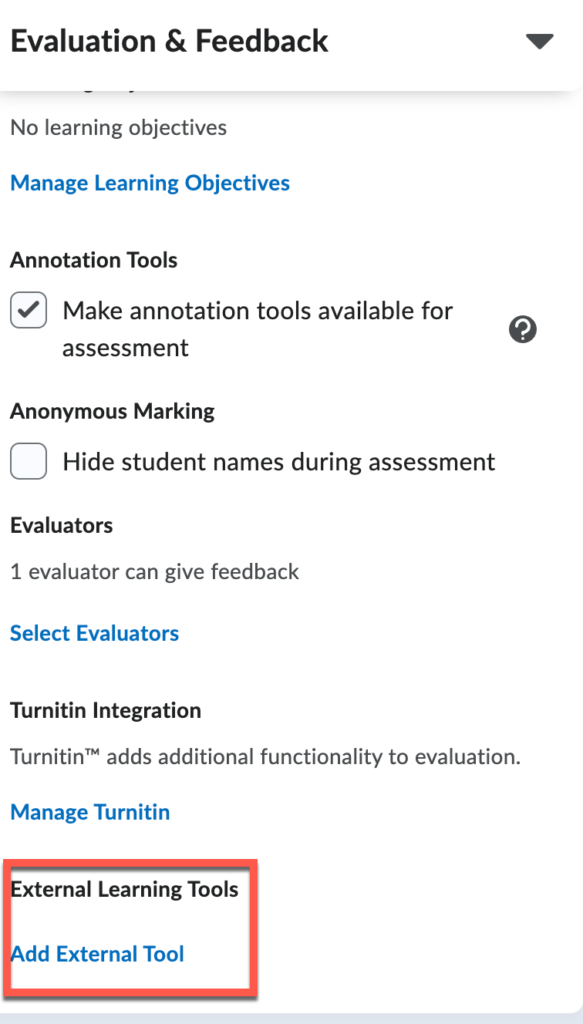
- In the right-hand column, click Evaluation and Feedback.
- Scroll down until you see External Learning Tools.
- Click Add External Tool.
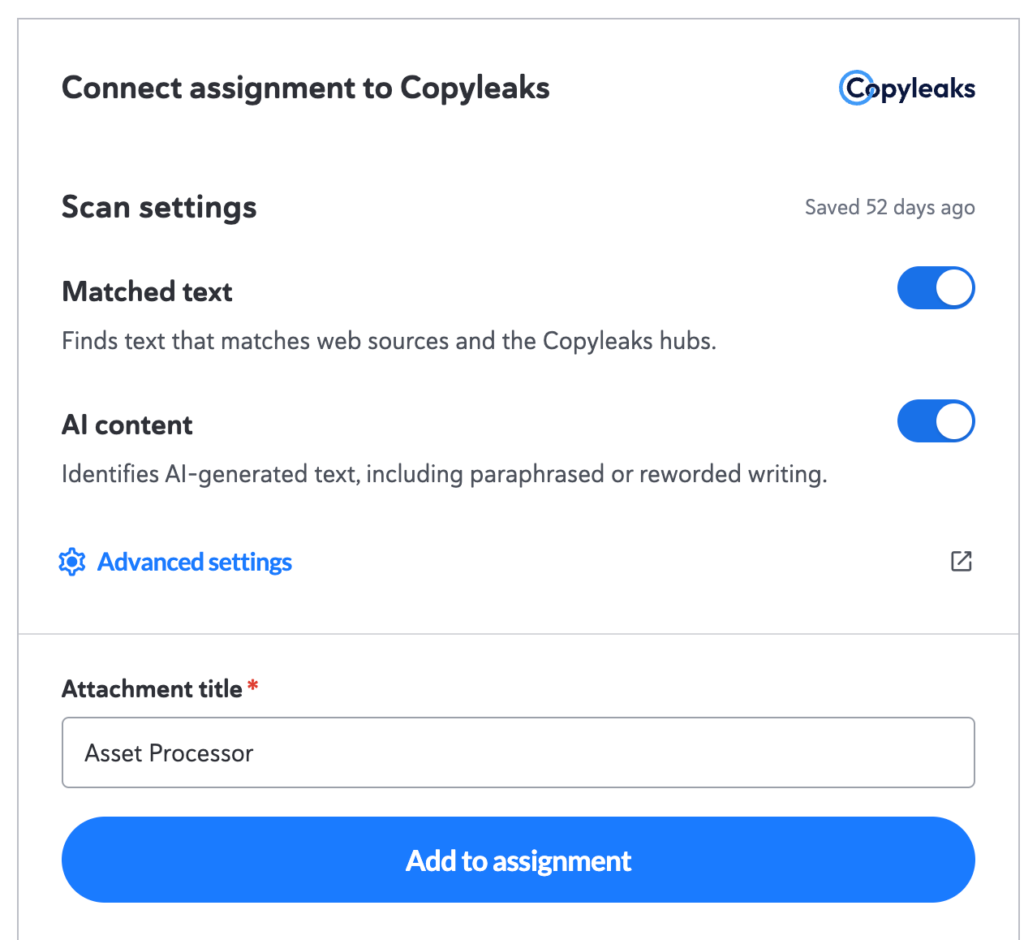
Connecting Assignments to Copyleaks
- Assignment Title: Leave as is.
- Scan Settings: This section shows when the assignment folder was last updated.
- Matched Text and AI Content: Both checks are turned on by default. Toggle either off if you don’t want it included.
- Advanced Settings (optional): See below for details if you want to customize how Copyleaks scans submissions.
- Click Add to Assignment to enable Copyleaks for this assignment.
Advanced Settings
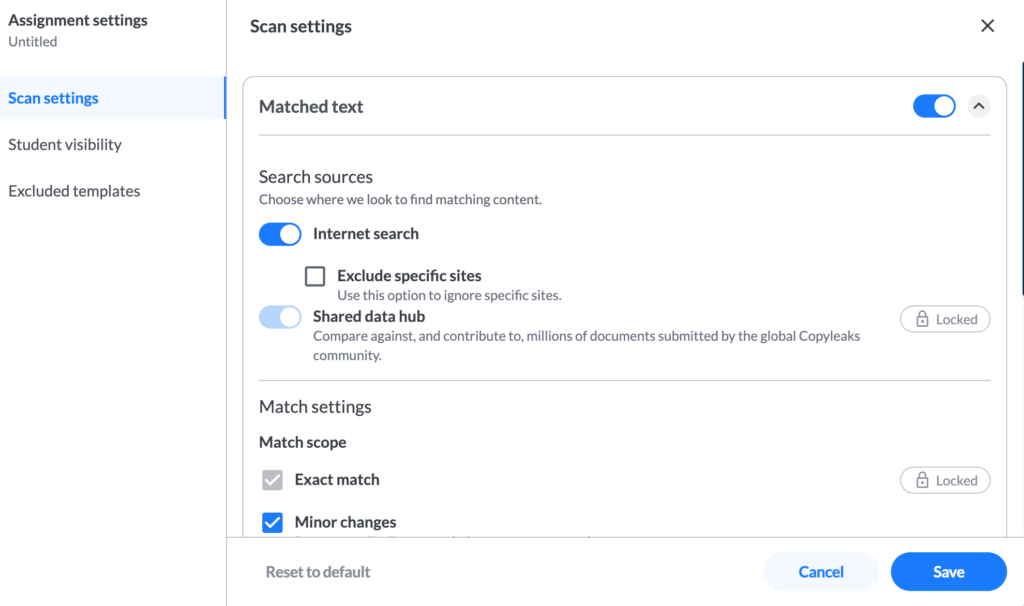
Scan Settings
- Matched Text
- Search Sources
- Internet Search: On by default. You can exclude specific websites.
- Shared Data Hub: Currently on by default.
- Match Settings (Match Scope)
- Exact Match: On by default.
- Minor Changes and Paraphrased: Can be turned on or off.
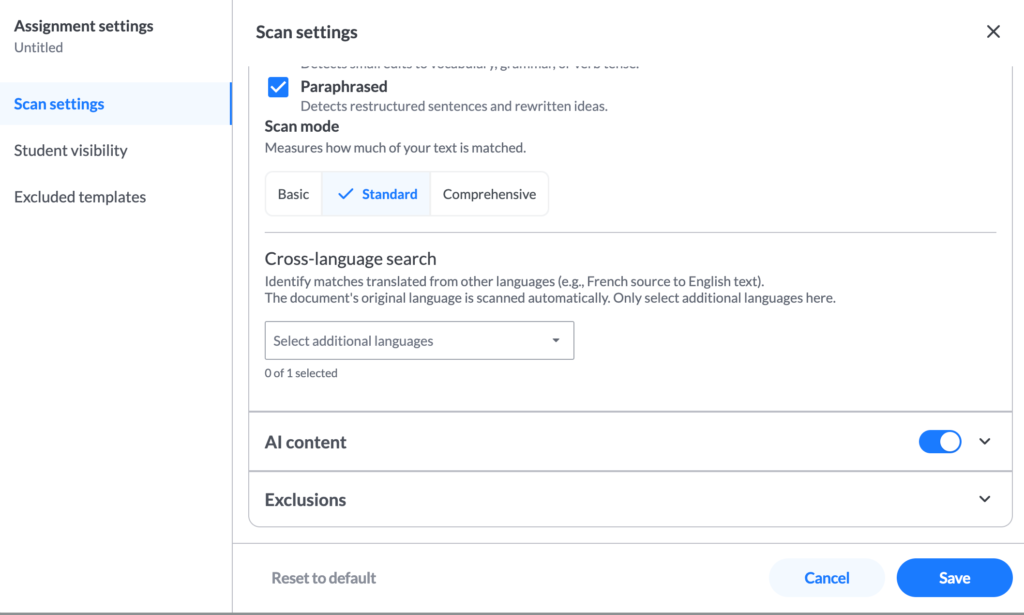
- Scan Mode represents the effort the model applies when searching for matched text. Standard is selected by default.
- Basic: Lower effort and faster scan time.
- Standard: (recommended, on by default) Balanced effort and scan time.
- Comprehensive: The model searches more extensively for matched text, requiring more effort and therefore taking longer.
- Search Sources
- Cross-language Search: Detects matches that have been translated from another language.
AI Content
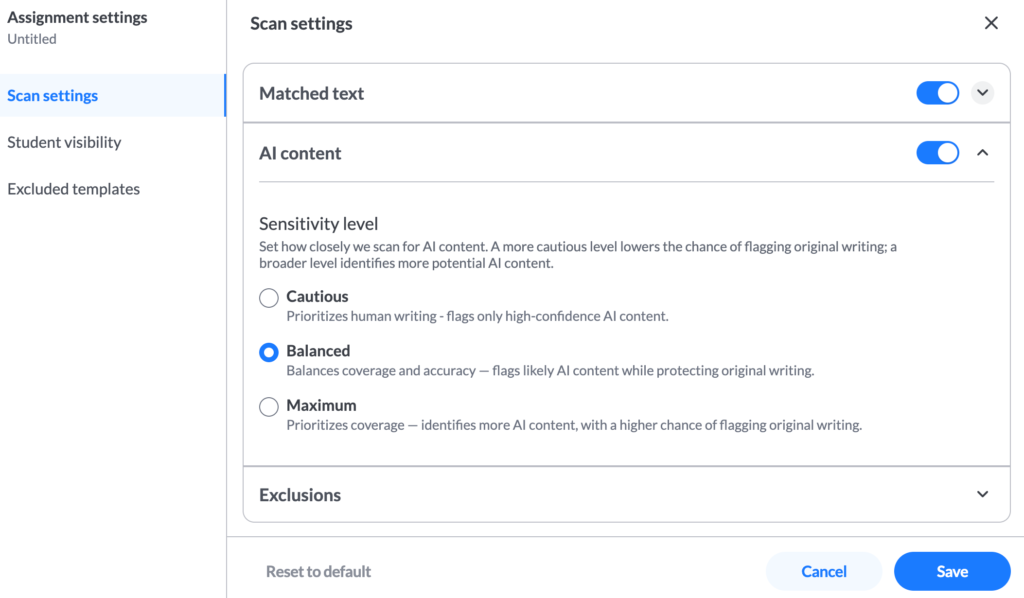
- Sensitivity Level: Controls how closely Copyleaks scans for AI-generated content.
- Cautious: Prioritizes human writing, flags only high-confidence AI content.
- Balanced: (Recommended, on by default) Balances overage and accuracy, flags likely AI content while protecting original writing.
- Maximum: Prioritizes coverage, identifies more AI content, with a higher chance of flagging original writing.
Exclusions
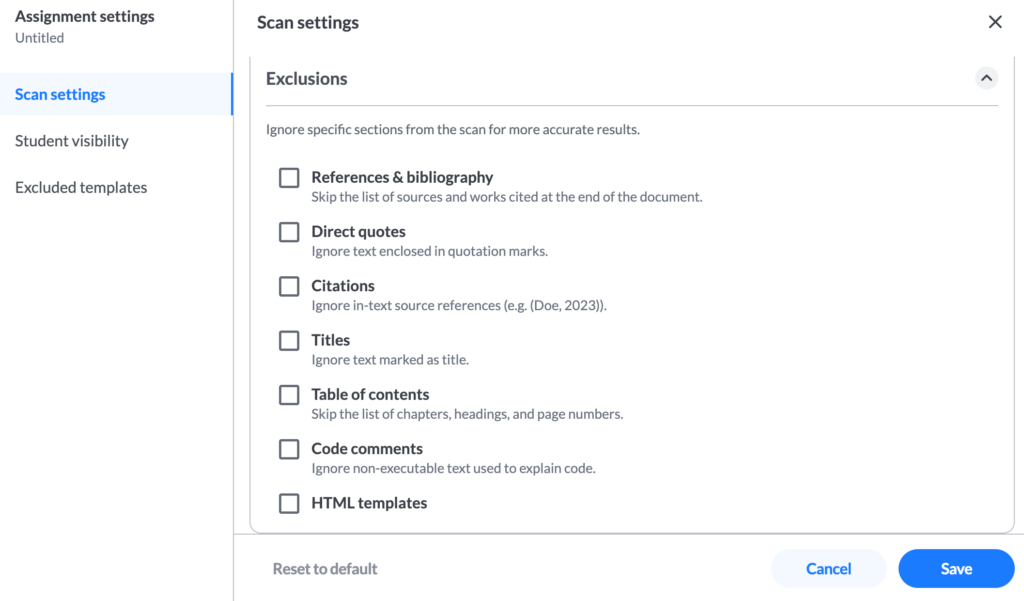
Exclude specific sections of a document for more accurate results. Options include:
- Reference and Bibliography
- Direct Quotes
- Citations
- Titles
- Table of Contents
- Code Comments
- HTML Templates
Student Visibility
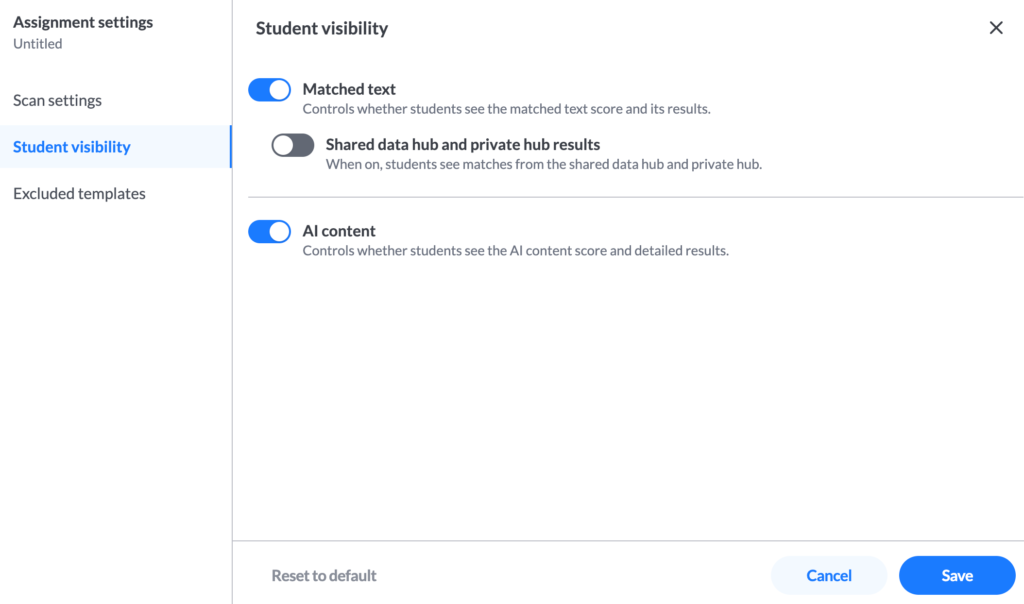
- Matched Text: On by default. Controls whether students see the matched-text score and results.
- Shared Data Hub/Private Hub Results: Off by default; allows students to see matches to other items in the shared data hub.
- AI Content: On by default.
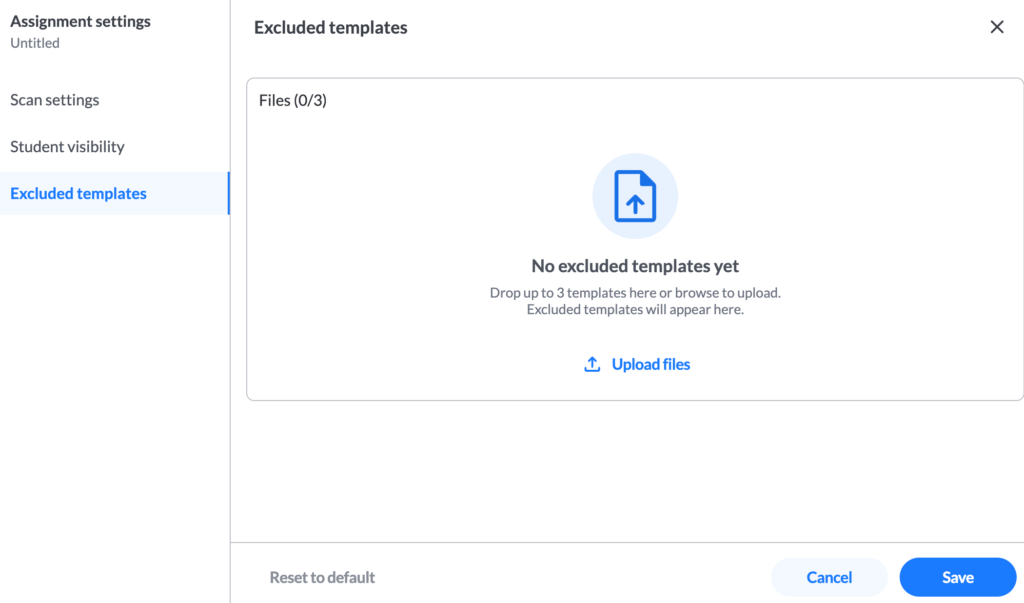
Excluded Templates
You can exclude up to 3 templates from scan results.
Note: These alerts are meant to flag possible academic integrity concerns — not confirm them. Always review the document yourself and discuss it with the student before drawing any conclusions.
Saving Your Settings
Click Save in the bottom-right corner to apply your changes, or use Reset to Default if you’d like to revert to the original settings.
New Experience: Once you click Save in the advanced settings, you will see an overall view of all your assignments with Copyleaks enabled. Close that window, then go back to the assessment processor and click Add to Assignment.
Accessing the Report
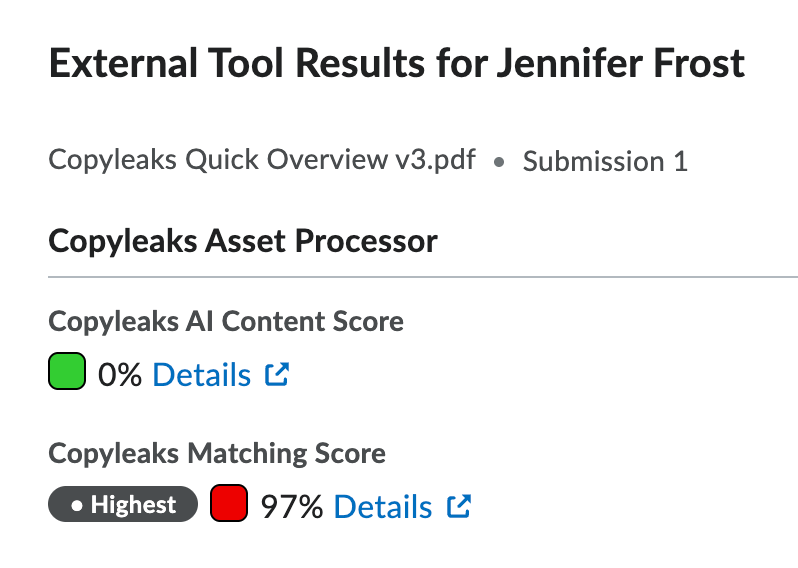
After a student submits a file, the instructor can view the report in their assignment view under External Tool Results.
- If a scan is in progress, an indicator will be visible.
- If the scan is complete, the indicator will be visible and display the plagiarism score.
- When clicking on the plagiarism score, the user will be redirected to the report
For step-by-step guidance on viewing the report, please watch the Copyleaks video tutorial.
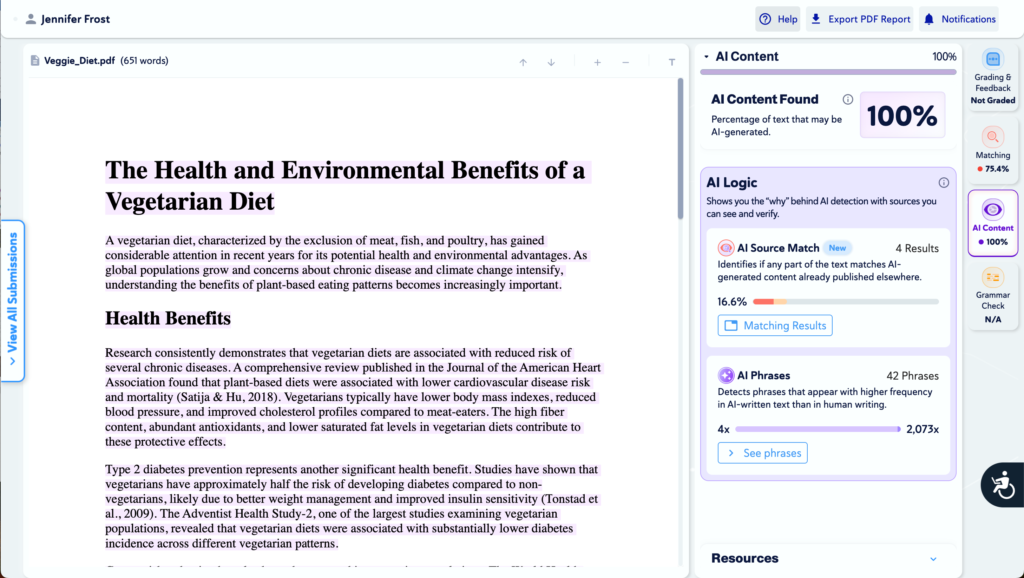
When viewing the report, you have three options: Grading and Feedback, Matching and AI Content.
Grading and Feedback
Currently, you can’t enter grades directly in Copyleaks or post them to the Gradebook. Complete all grading through the assignment folder.
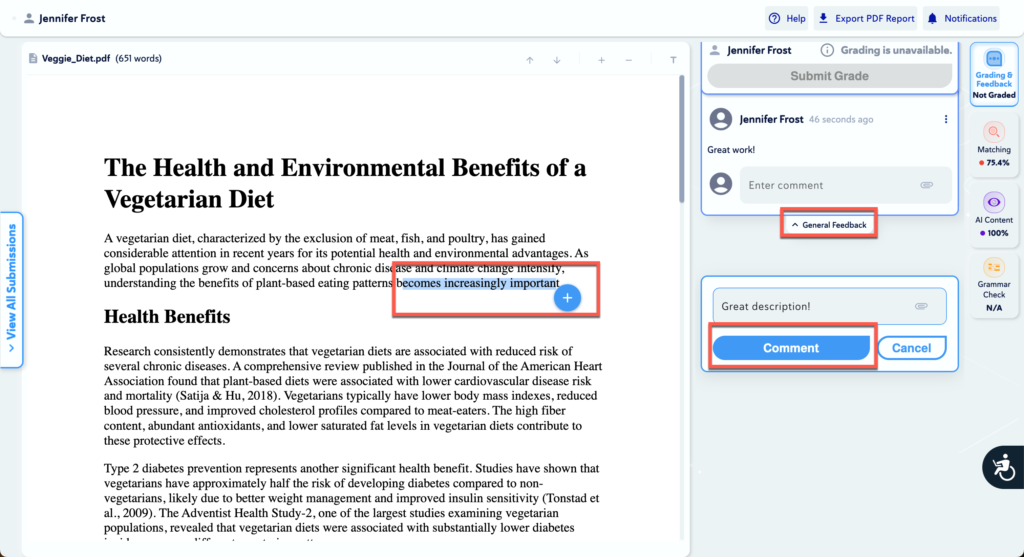
You can, however, provide feedback to students within Copyleaks in two ways:
- Use General Feedback to add comments about the paper as a whole.
- Highlight specific text, click the plus (+) button, and add feedback related to that selected section.
Matching
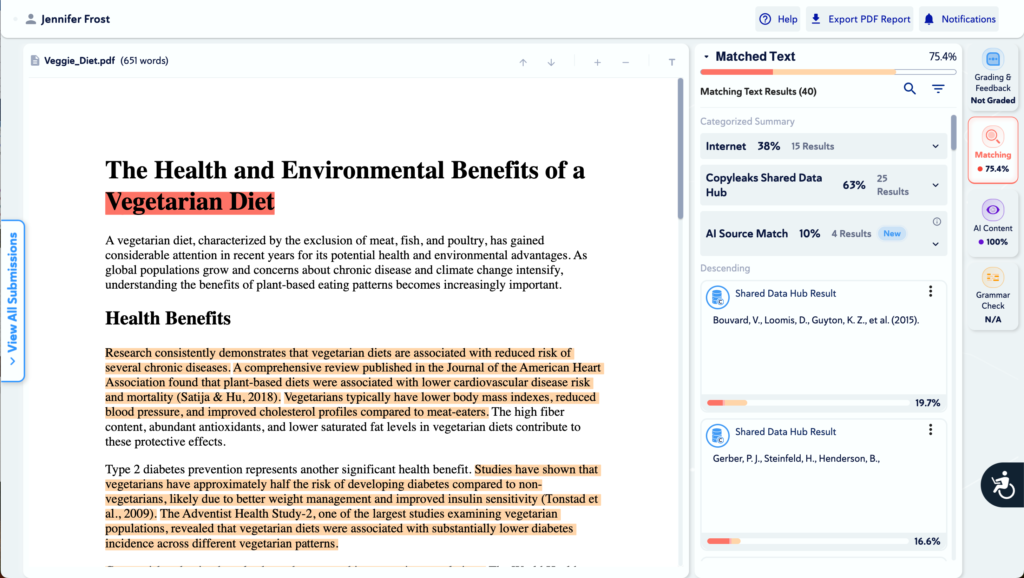
Here, you will see the plagiarism score. Under Matched Text, you can click the drop-down arrow to view results for identical, minor changes, paraphrased, and original text.
The Categorized Summary shows which internet sources the content matches, as well as any matches from the Copyleaks Shared Data Hub and AI source detection. Below this section, all matching results are listed in descending order. Click any listed website to view more detailed matching information.
AI Content
In this section, you can review text that Copyleaks has identified as AI-generated or human-written. The results help distinguish between content likely produced by AI tools and content written by the student.
Under AI Logic, you will find the following indicators:
- AI Source Match: Identifies text that matches AI-generated content published on websites or other online sources.
- AI Phrases: Selecting See Phrases allows you to review specific sections of text and the logic behind why the system has identified them as likely AI-generated.
These indicators provide transparency into how the system evaluates AI-generated content and support informed academic integrity reviews.
Additional Copyleaks AI Resources
FYI: In this example, the submission was fully generated by AI, and the system successfully identified the content.