How to use Copyleaks in SLATE
Looking for step-by-step instructions? You’ll find them below. Prefer to watch a video instead? We’ve created a video tutorial on adding Copyleaks to an Assignment Folder.
- Click on Assessment>Assignments.
- Either create a New Assignment or Edit an Existing Assignment.
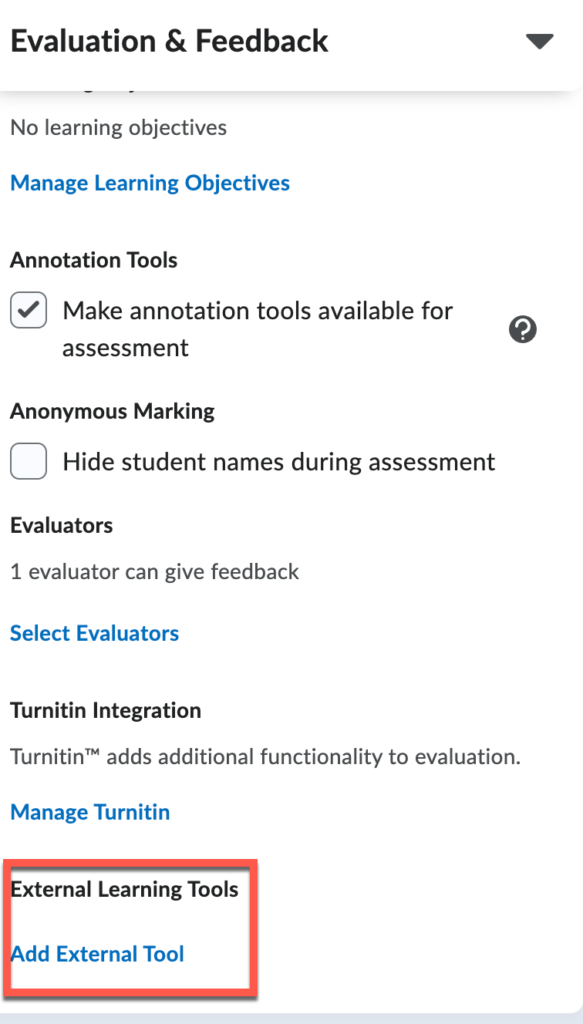
- In the right-hand column, click Evaluation and Feedback.
- Scroll down until you see External Learning Tools.
- Click Add External Tool.
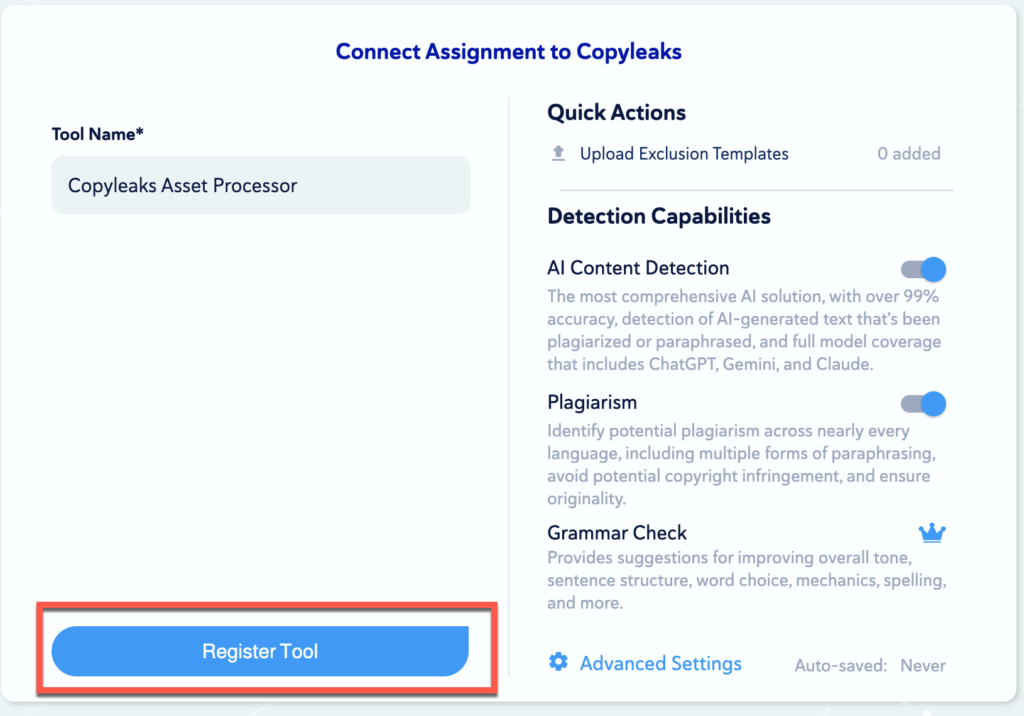
- Within the Copyleaks Assignment Asset Protector
- Leave the Tool Name as is.
- Under Quick Actions, you can add a template if you prefer.
- Under Detection Capabilities, you can turn off or on the AI and Plagiarism check; they are both on by default. (We do not offer Grammar Check).
- Optional: Advanced Settings (Instructions below)
- Click the Register Tool to add Copyleaks
Advanced Settings
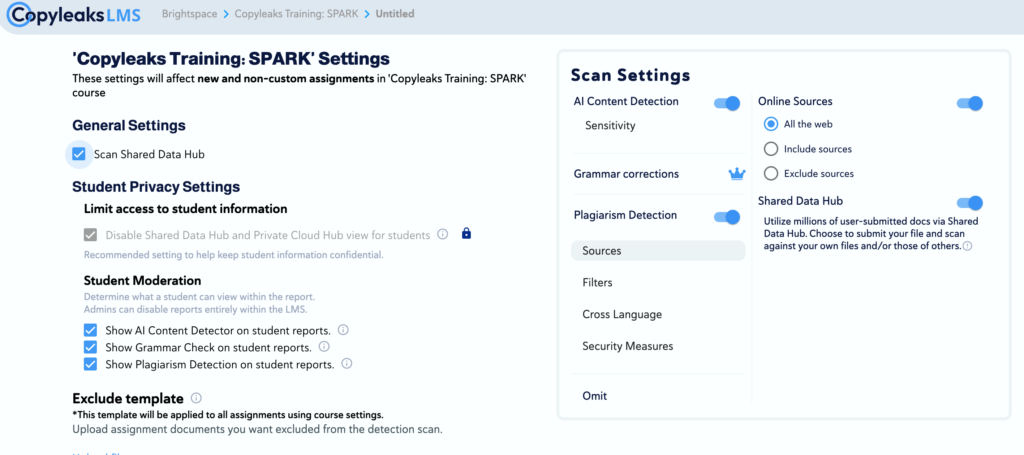
- Click on Advanced Settings to customize options:
- General Settings
- Scan Shared Data Hub: The instructor has the ability to uncheck this box so that papers are not stored in the database. Use this option if you are creating a self-check folder.
- Student Moderation: Students will automatically be able to see their AI and plagiarism scores. If you wish, you can turn off either option by unchecking it.
- Exclude Template: Option to upload a file that is being used as a template to exclude it from the plagiarism equation.
- General Settings
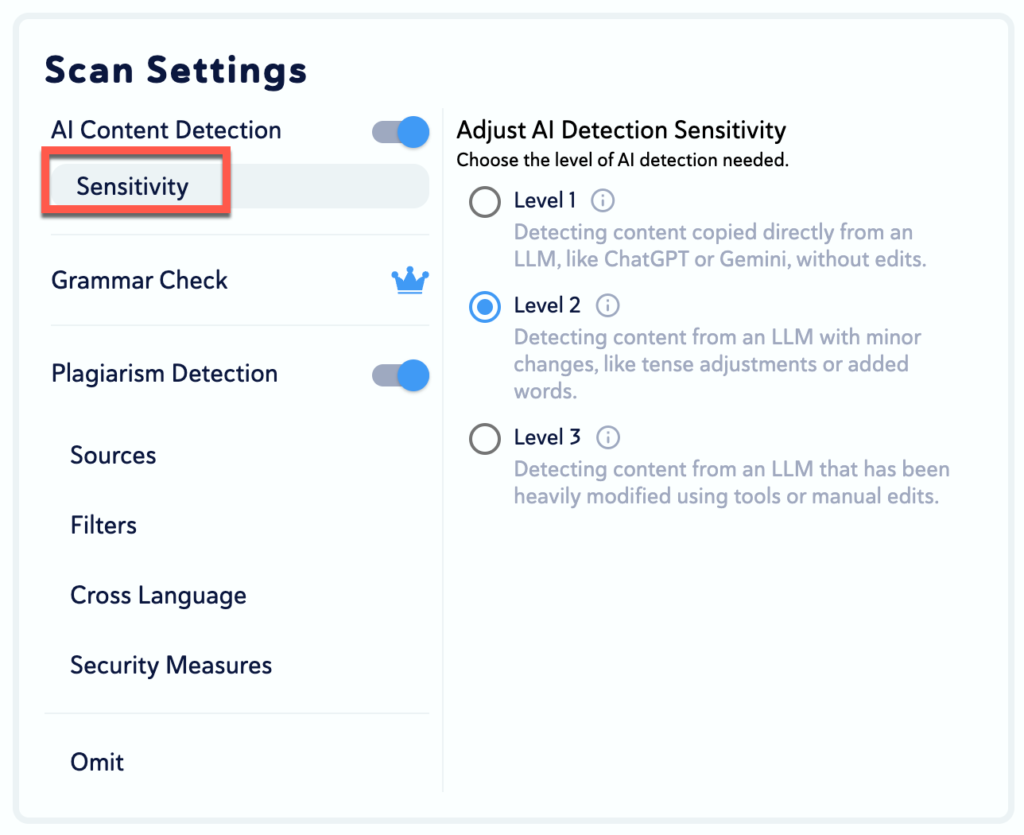
- Scan Settings
- AI Detection: Ability to toggle on or off based on need.
- Sensitivity: Default is set to Level 2, feel free to adjust based on your assignment requirements.
- AI Detection: Ability to toggle on or off based on need.
- Plagiarism Detection: Ability to toggle on or off based on need.
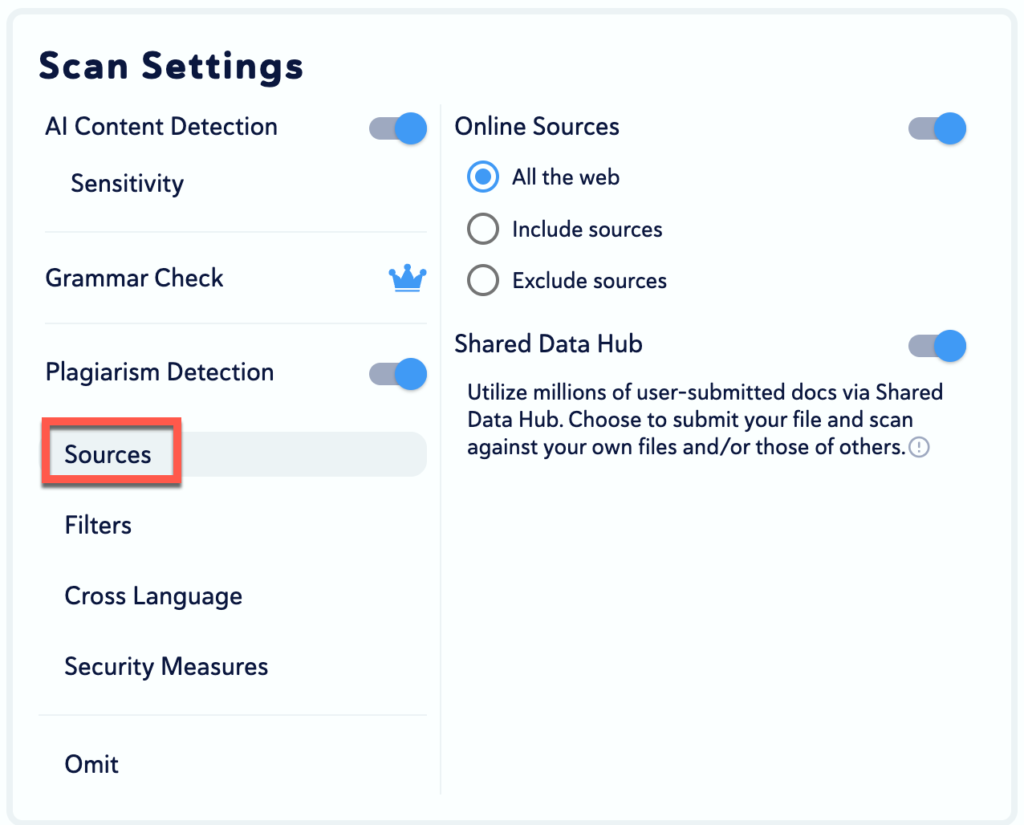
- Sources
- Online Sources: You can choose to have the scan include all the web sources, select specific sources only, or exclude certain sources.
- Shared Data Hub: Toggle off if you do not want the paper to be submitted to the data hub (this will be off if you chose the option under general settings)
- Sources
- Filters
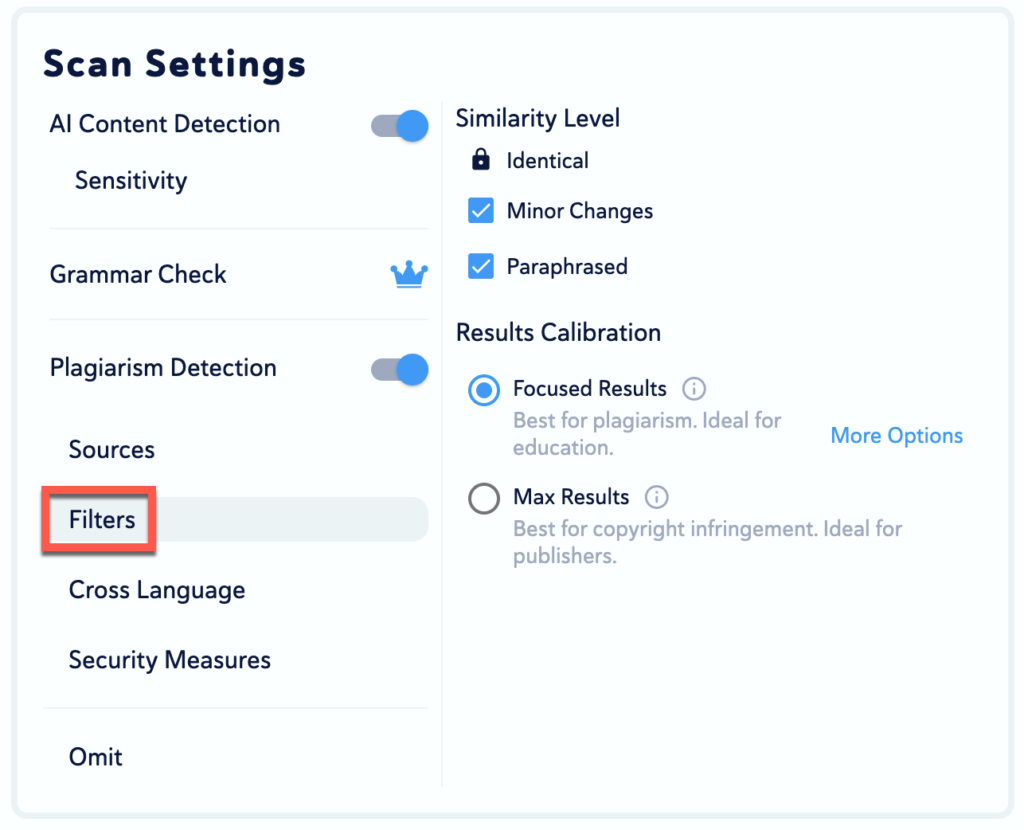
- Similarity Level
- Identical on by default: 1 to 1 exact word matches, highlighted in red
- Minor Changes: text that has some minor variations from the source but conveys the same meaning. Example: changing “he was running” to “he ran”. Highlighted in light red.
- Paraphrased: text that is rewritten using different words or sentence structures, but the core idea remains the same.
- Results Calibration
- Focused Results is recommended
- Similarity Level
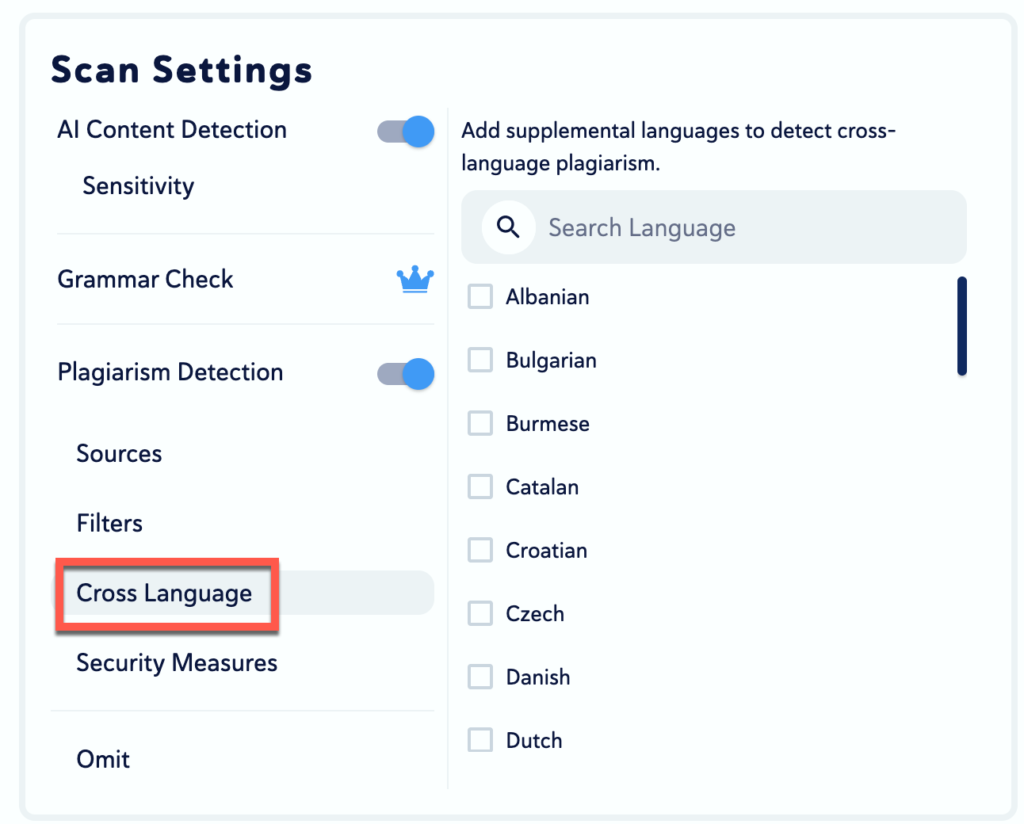
- Cross Language: the ability to specify the additional language in which you would like to scan for results.
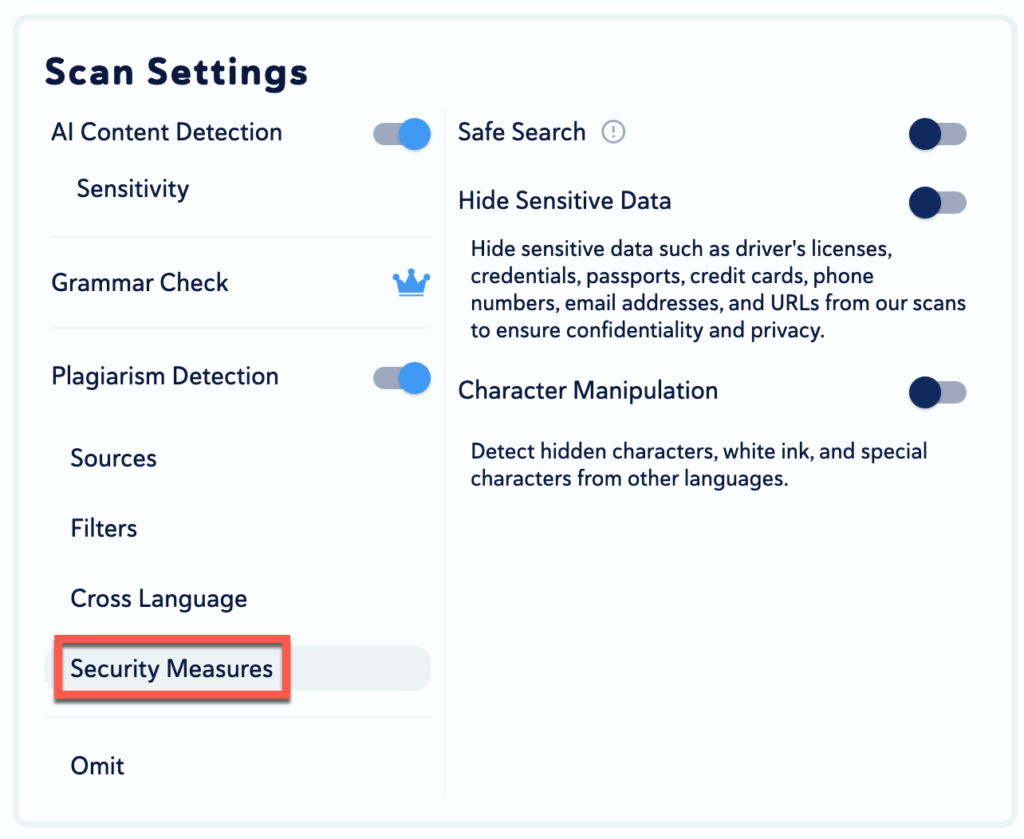
- Security Measures
- Safe Search – the ability to eliminate any possibility of adult or violent content from appearing; they will not appear in the search results.
- Hide Sensitive Data – toggle on or off to hide important information like driver’s licenses, email addresses, telephone numbers and other credentials.
- Character Manipulation – An Advanced Detection Alert will appear to identify an abnormality in a submitted document. These abnormalities are found due to a student’s efforts to cheat or “fool” the scan. The three forms of cheating that Copyleaks can detect are called Character Replacement, Invisible Text and Major Text Exclusion.
Please note that these alerts are intended as a flag for possible intentional cheating. Documents should always be reviewed before confirmation of cheating and discussion with your student(s)
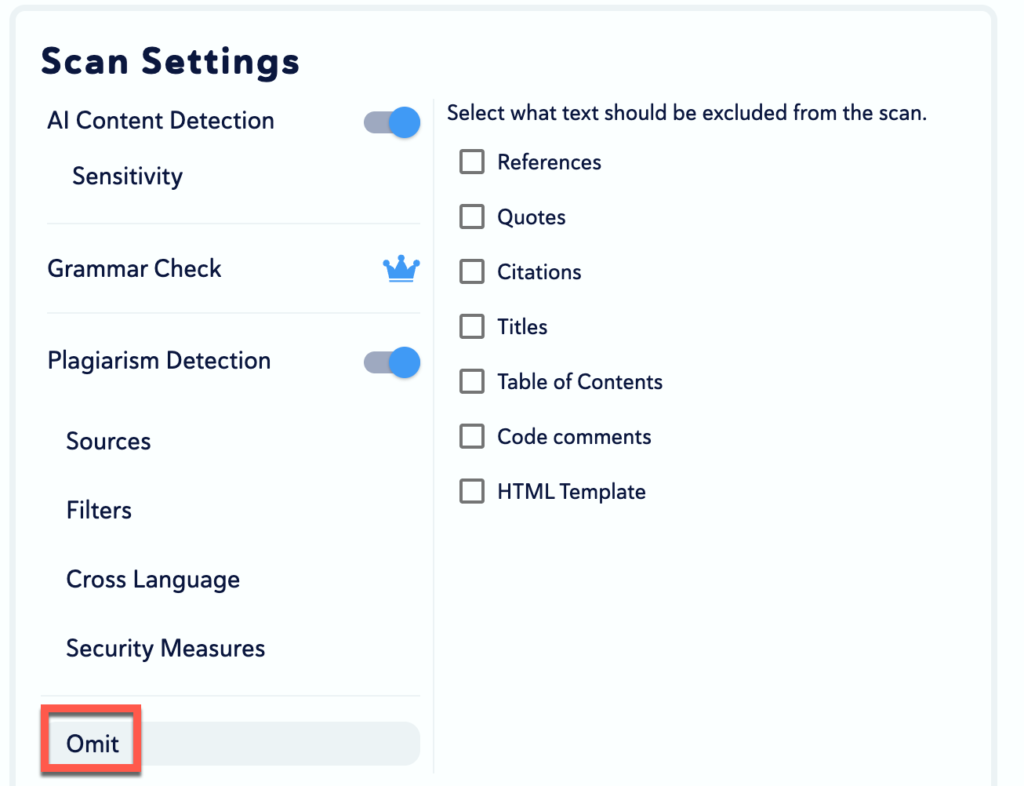
- Omit: The ability to exclude components from the plagiarism detector.
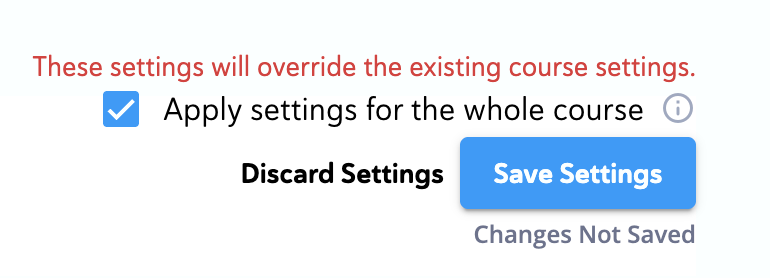
Save Settings: The Save button is located in the bottom-right corner. The Save settings have recently been updated. By default, Apply settings for the whole course is enabled, which means the same settings will be used for any new assignments created. If you are creating a self-check folder, please ensure this option is unchecked.
Accessing the Report
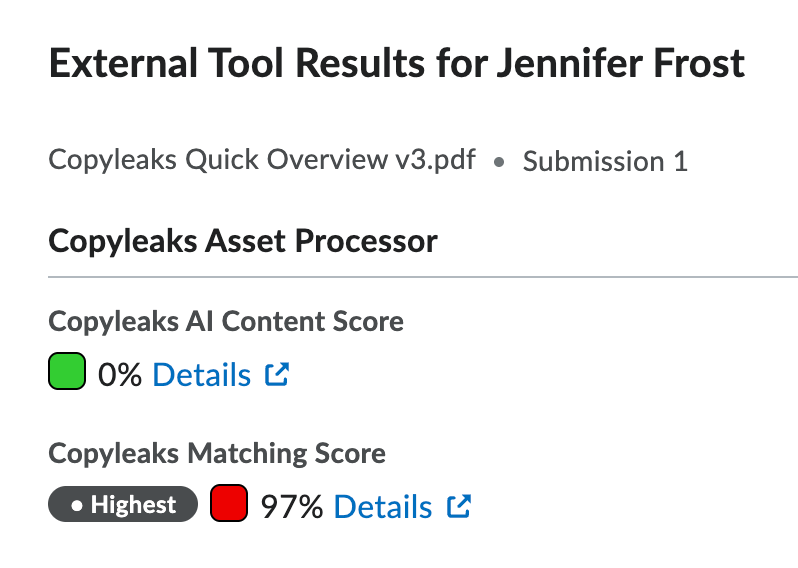
After a student submits a file, the instructor can view the report in their assignment view under External Tool Results.
- A scan is in progress, an indicator will be visible.
- If the scan is complete, the indicator will be visible and display the plagiarism score.
- When clicking on the plagiarism score, the user will be redirected to the report
For step-by-step guidance on viewing the report, please watch the Copyleaks video tutorial.
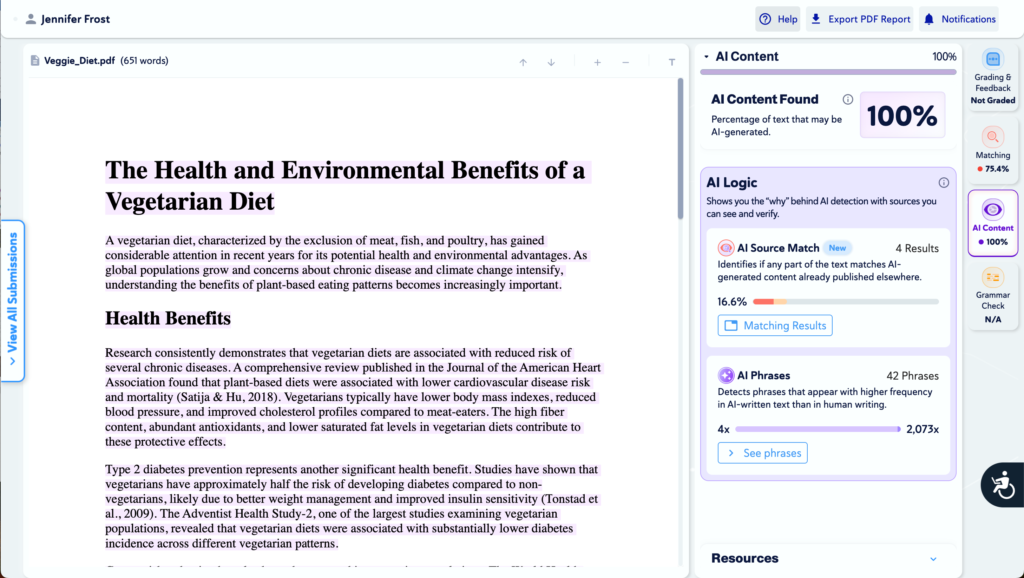
When viewing the report, you have three options: Grading and Feedback, Matching and AI Content.
Grading and Feedback
Currently, grades cannot be entered directly in Copyleaks or posted to the Gradebook. All grading must be completed through the assignment folder.
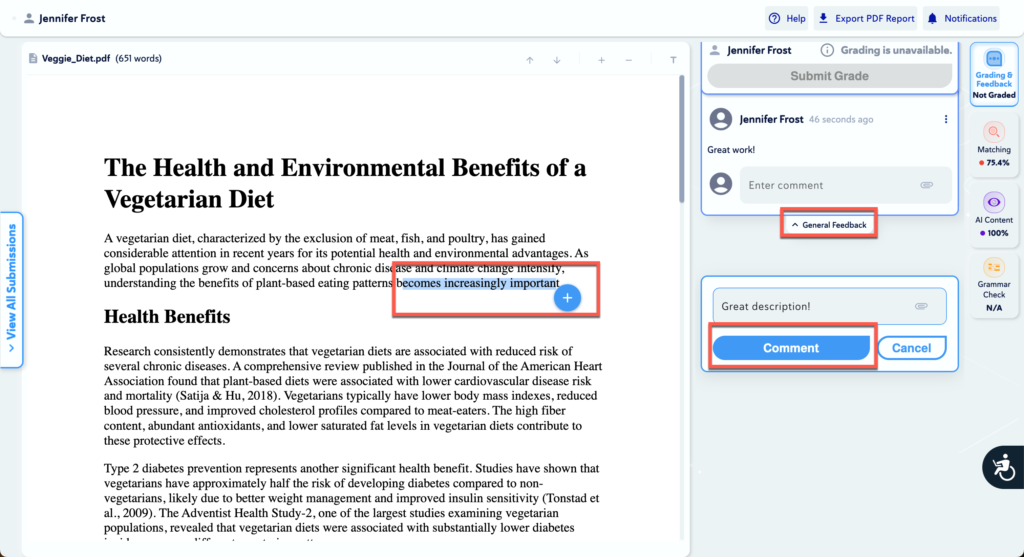
You can, however, provide feedback to students within Copyleaks in two ways:
- Use General Feedback to add comments about the paper as a whole.
- Highlight specific text, click the plus (+) button, and add feedback related to that selected section.
Matching
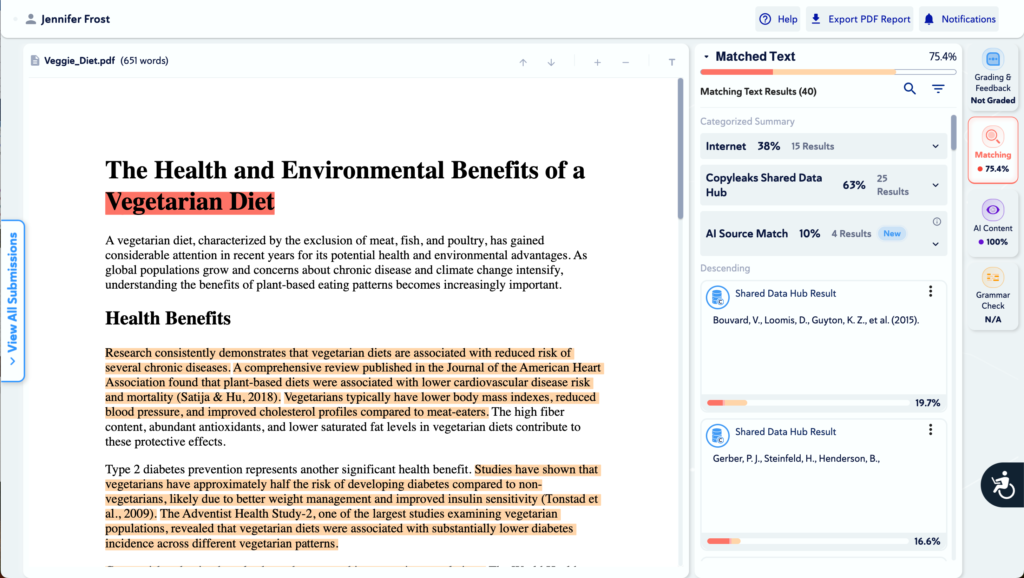
Here, you will see the plagiarism score. Under Matched Text, you can click the drop-down arrow to view results for identical, minor changes, paraphrased, and original text.
The Categorized Summary shows which internet sources the content matches, as well as any matches from the Copyleaks Shared Data Hub and AI source detection. Below this section, all matching results are listed in descending order. You can click on any listed website to view more detailed matching information.
AI Content
In this section, you can review text that Copyleaks has identified as AI-generated or human-written. The results help distinguish between content likely produced by AI tools and content written by the student.
Under AI Logic, you will find the following indicators:
- AI Source Match: Identifies text that matches AI-generated content published on websites or other online sources.
- AI Phrases: Selecting See Phrases allows you to review specific sections of text and the logic behind why the system has identified them as likely AI-generated.
These indicators provide transparency into how the system evaluates AI-generated content and support informed academic integrity reviews.
Additional Copyleaks AI Resources
FYI: In this example, the submission was fully generated by AI, and the system successfully identified the content.