There is not currently a way to directly “combine” Class Teams in Microsoft Teams. However, you can add additional people or even entire classes to an existing Class Team.
Once your Team has been activated, go to the Teams tab and click the three dots (More options) next to the Team name. You can also access the same menu from within the Team itself. Select Add member.
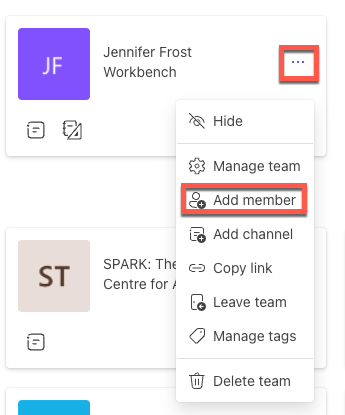
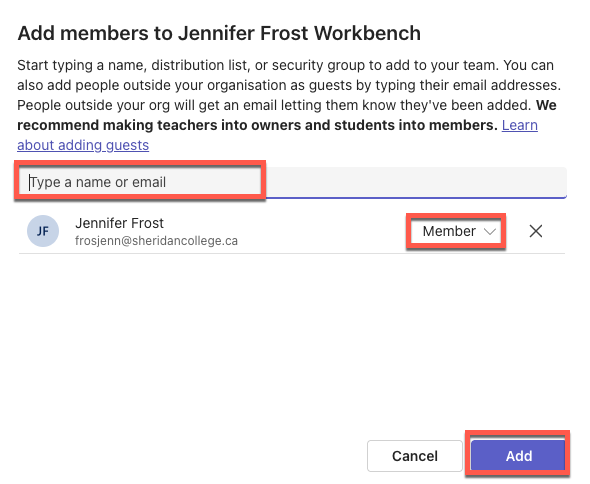
From there, you can add additional members to the Team. Typically, it is best to choose one Class Team to serve as the primary Team and add students from the other classes to that Team. This allows you to schedule and manage all sessions from a single Team.
You can add participants individually by name or search for and add an entire class. When adding users, you will be prompted to choose whether they should be a Member or an Owner. In most cases, Member is the appropriate choice. Only assign Owner permissions to individuals who need the ability to manage, edit, or control the Team.
Once all participants have been added to the Team, any meetings or sessions scheduled within that Team will automatically be available to all Team members.
