SLATE LMS Updates
Brightspace by D2L releases SLATE updates every month. D2L publishes the full release notes in the Brightspace Community, including new features, improvements, and fixes.
Please keep in mind: Sheridan’s SLATE environment may not include every feature D2L announces, and some features may be released later or configured differently here. If you have questions about a feature or whether it’s available to you, please contact us.
This page summarizes what’s new in SLATE. Select the + next to a month to see what changed. For updates before November 2026, please see the Brightspace Community.
Brightspace Editor – Expanded course date replacement strings
To provide greater flexibility when designing course homepages and content, the {OrgUnitStartDate} and {OrgUnitEndDate} replacement strings are now supported in all tools that use the Brightspace Editor. Previously, these strings were limited to use within Intelligent Agents and email body text.
This update allows instructors to dynamically display the start and end dates of a course offering across multiple areas, including custom homepage widgets, announcements, and discussion descriptions. This ensures that learners have immediate and consistent visibility into important course timelines.
This feature implements the following PIE items:
- D12824 (Start and End Date Replace Strings on Widgets)
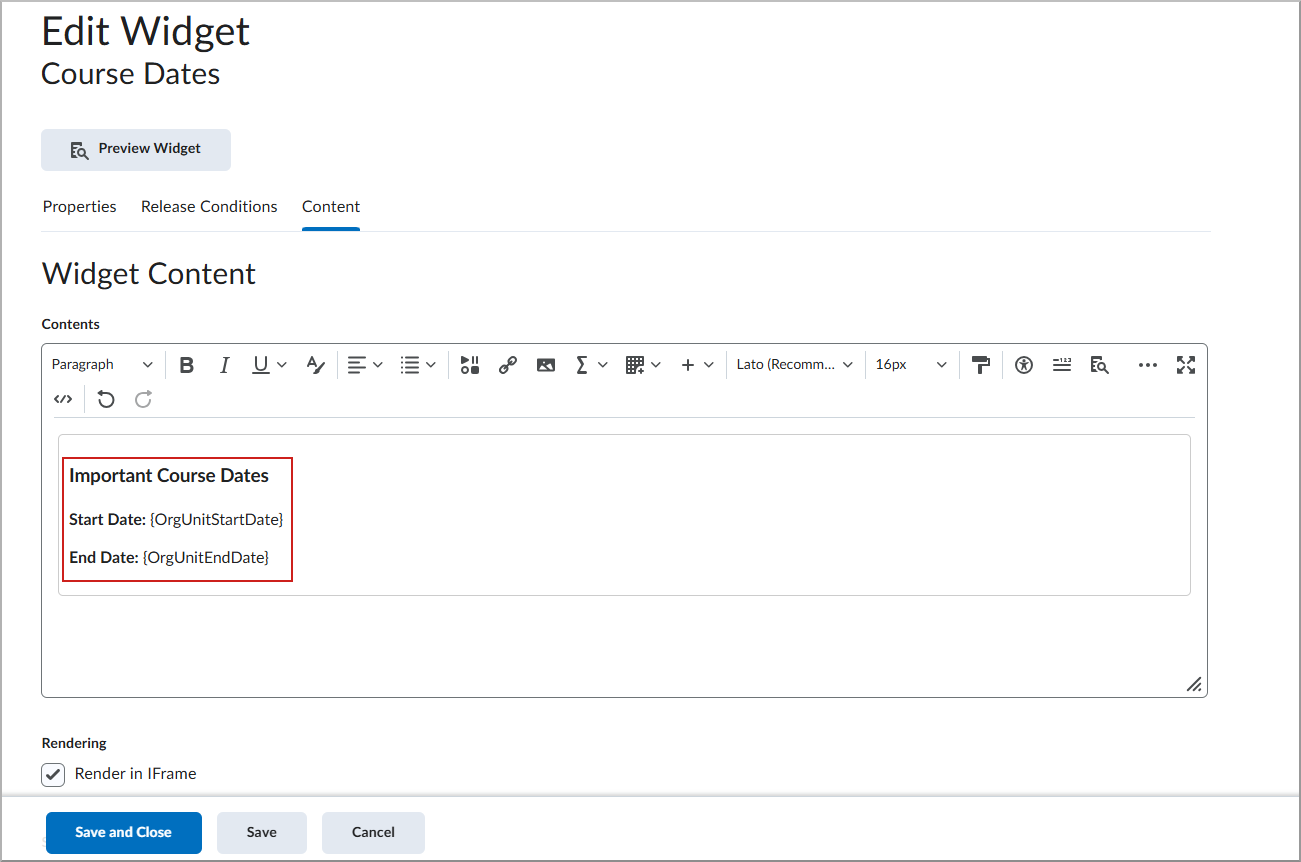
Figure: In the Edit Widget dialog, use the {OrgUnitStartDate} and {OrgUnitEndDate} replacement strings to dynamically display course dates in a custom widget.
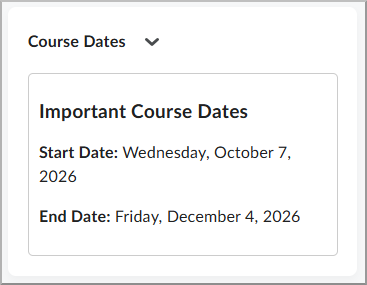
Figure: The custom widget displays the Start Date and End Date on the homepage when viewed by a learner.
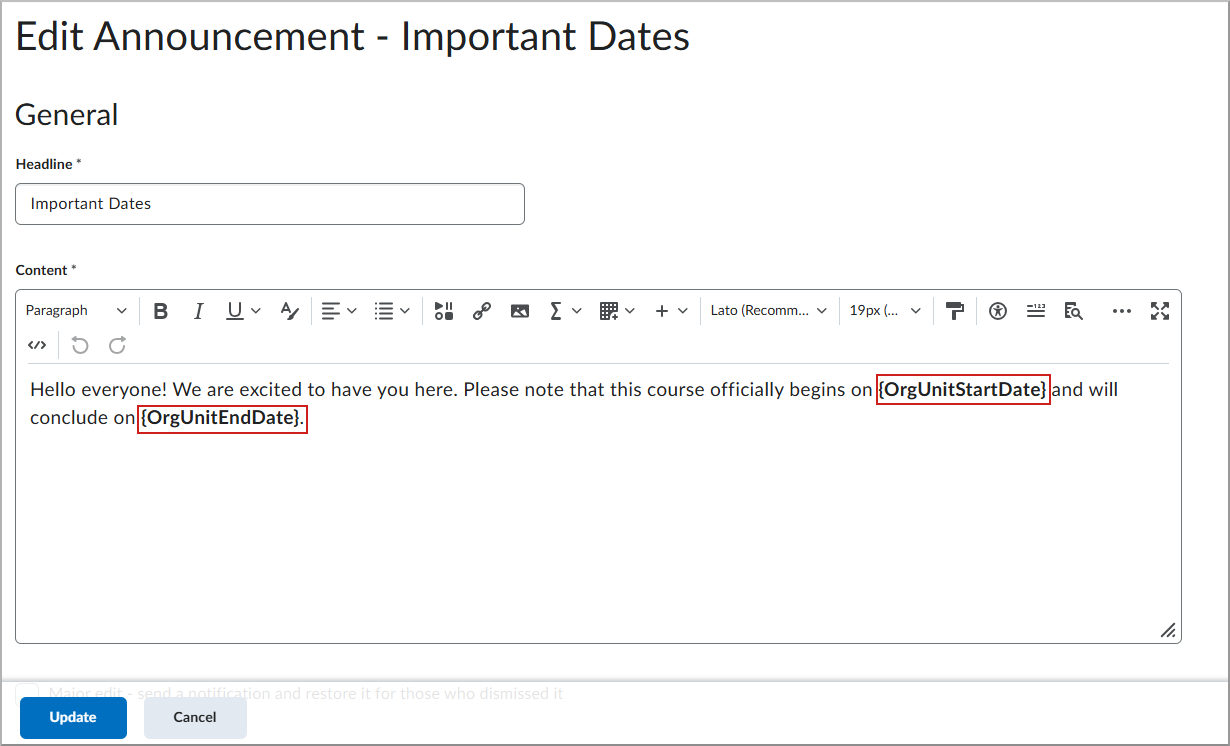
Figure: In the Edit Announcement dialog, use the {OrgUnitStartDate} and {OrgUnitEndDate} replacement strings to dynamically display course dates in an announcement.
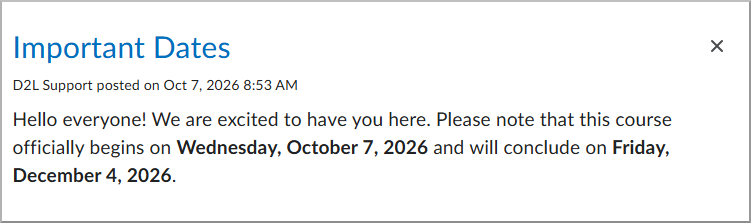
Figure: The announcement displays the Start Date and End Date in the Announcements section when viewed by a learner.
Groups – Improved Manage Members experience
To make it easier for instructors to manually manage group membership, the new Manage Groups experience now includes an improved Manage Members page with Groups and Learners tabs. Instructors can manage membership by viewing groups and their members or by viewing learners and the groups to which they belong.
For organizations that have enabled the new Manage Groups experience using the d2l.Tools.Groups.ManageGroupsOptIn configuration variable, the new Manage Members page is available. When using the new experience, the previous Enroll Users page is no longer displayed. Depending on how the new Manage Groups experience is configured, users can use the available toggle to switch between experiences. For more information, refer to Introducing New Manage Members Workflows in Manage Groups.
As part of this update, the Manage Groups page includes a new Not Enrolled column that identifies the number of learners who are not enrolled in a group within each category. Selecting the number of unenrolled learners opens the Learners tab on the Manage Members page, automatically filtered to show unenrolled learners.
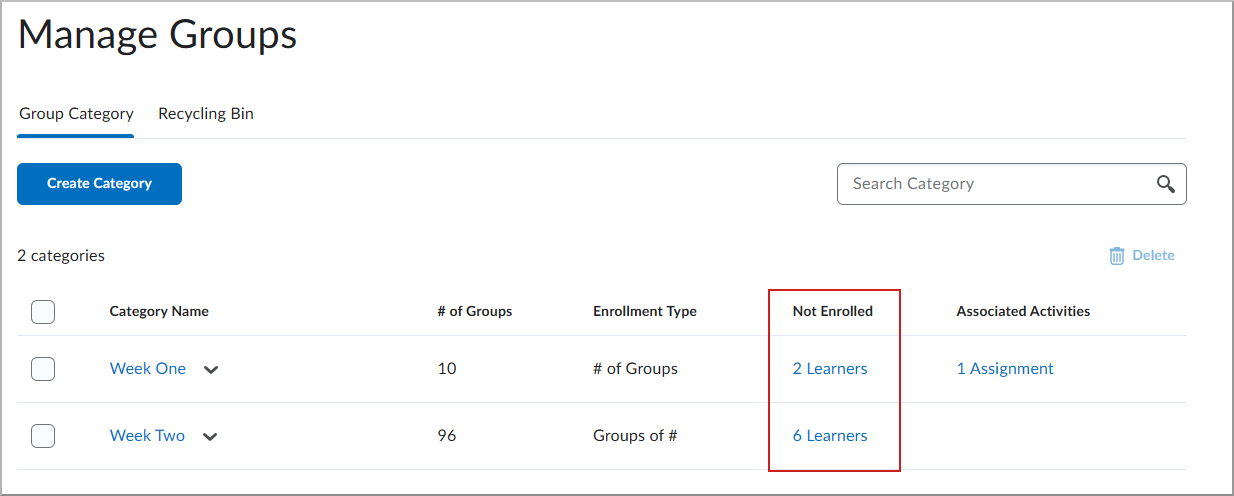
Figure: The Not Enrolled column provides direct access to learners who are not currently assigned to a group in the category.
The Groups tab is selected when instructors manage members for an entire category or a specific group. When managing a single group, the page is automatically filtered to that group. Instructors can also filter the page by one or more groups. To add members to a group, instructors select the + icon and select one or more learners. To remove a learner directly from a group, instructors can select the X beside the learner’s name on the Groups tab.
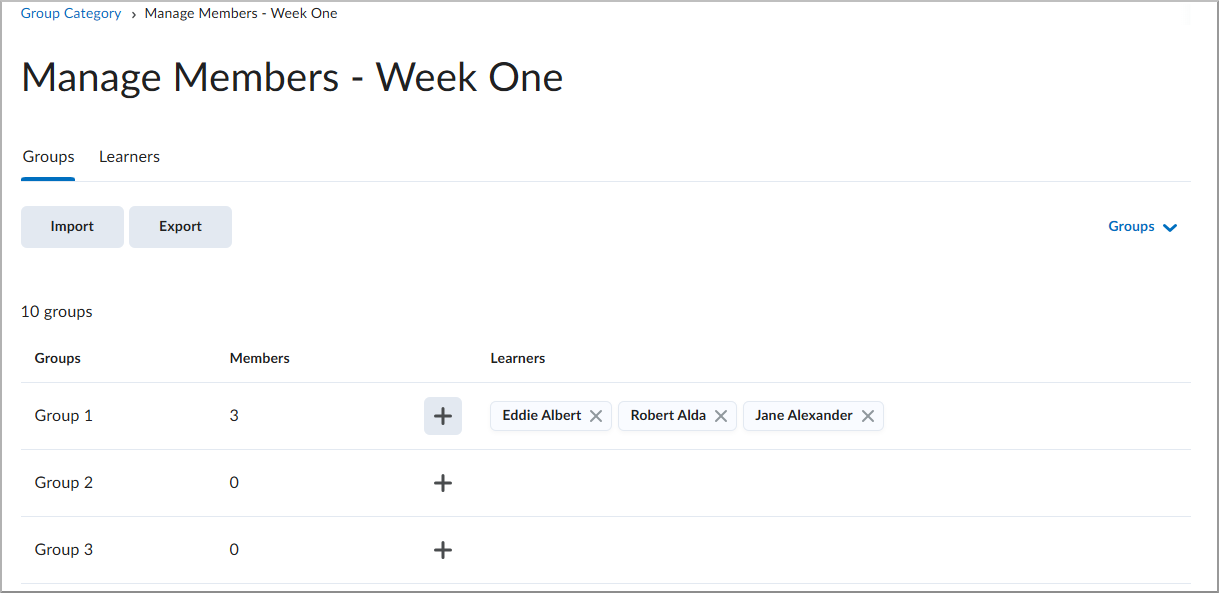
Figure: Use the Groups tab to view group membership and filter the list by one or more groups.
Unselecting a learner who is already a member removes that learner from the group. Instructors can search for learners by name or filter the list to show only learners who are not currently enrolled in a group.
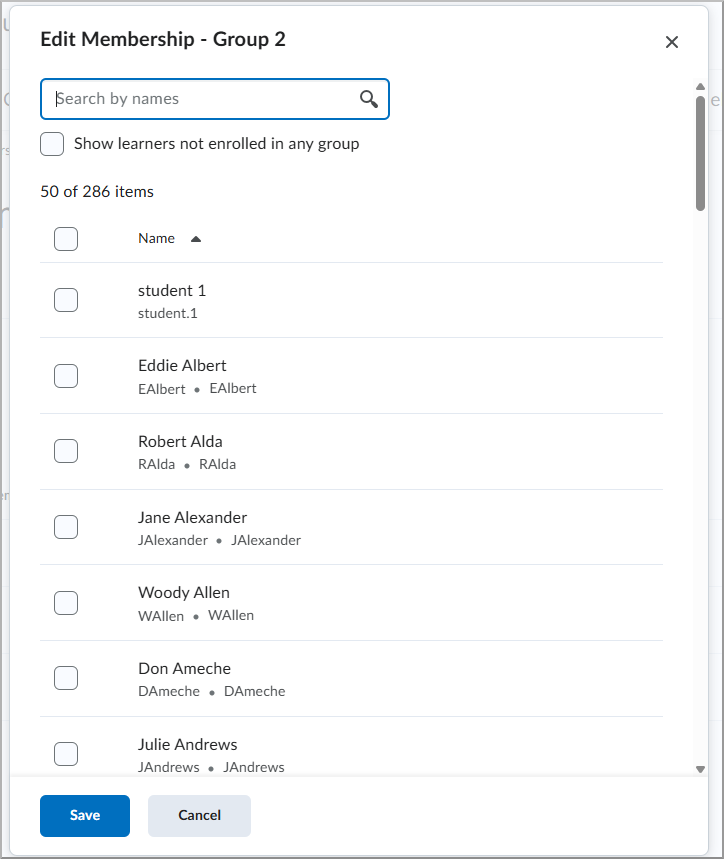
Figure: Select learners to add them to the group, or clear selected learners to remove them from the group.
On the Learners tab, instructors can adjust the filters to show enrolled or unenrolled learners, search for a learner, or filter by one or more groups.
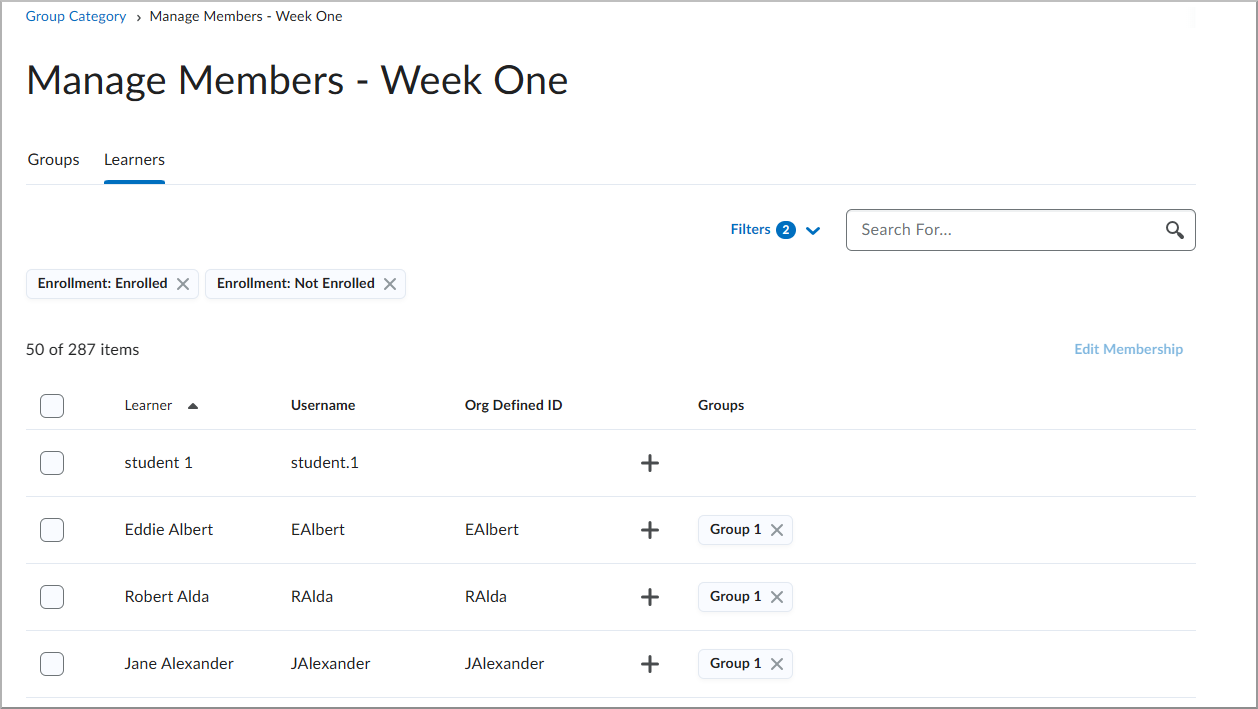
Figure: Use the Learners tab to find learners and review their group membership.
To change the group membership of an individual learner, instructors select the + icon beside the learner’s name and select one or more groups. Unselecting a learner a group in which the learner is already enrolled removes the learner from that group.
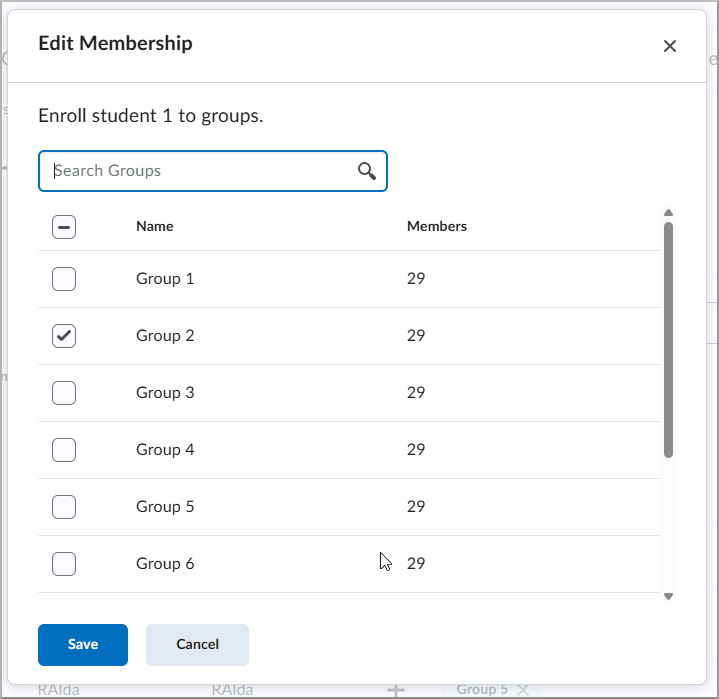
Figure: Select one or more groups to update the group membership of an individual learner.
To update multiple learners at the same time, instructors select the learners and then select Edit Membership. From the Edit Membership dialog, instructors can enroll the selected learners in one or more groups or remove them from groups by unselecting the corresponding checkboxes. A group appears selected only when all selected learners are already enrolled in that group.
This update also increases the number of groups initially displayed on the group list page from 10 to 200. Selecting Load More displays up to 200 additional groups at a time. This improvement is based on feedback from customers who opted in to the new Manage Groups experience.
This feature implements the following PIE items:
- D13146 (Fix Group Enrolment Search/Browse)
- D14251 (Increase number of groups shown in New Manage Groups user interface)
Homepages and Navbars – Display course status and dates in course banners and titles
Instructors and learners can now view course status indicators, such as Inactive or Closed, and course start and end dates directly from the course homepage. This update makes course availability information easier to find without navigating to Course Offering Information.
Course status and dates can appear in two locations:
- Course title (minibar): Administrators can enable a configuration variable to display course status and dates beside the course title, above the navigation bar.
- Course banner: Instructors can use the Customize Banner menu (previously called Customize Banner Text) to display course status and dates over the course banner image by selecting the Display Course Status option.
The course banner menu also includes a shortcut to Course Offering Information, allowing instructors to access course settings more quickly.

Figure: Course status displayed as an overlay on the course banner.

Figure: Course start and end dates displayed beside the course title in the minibar.
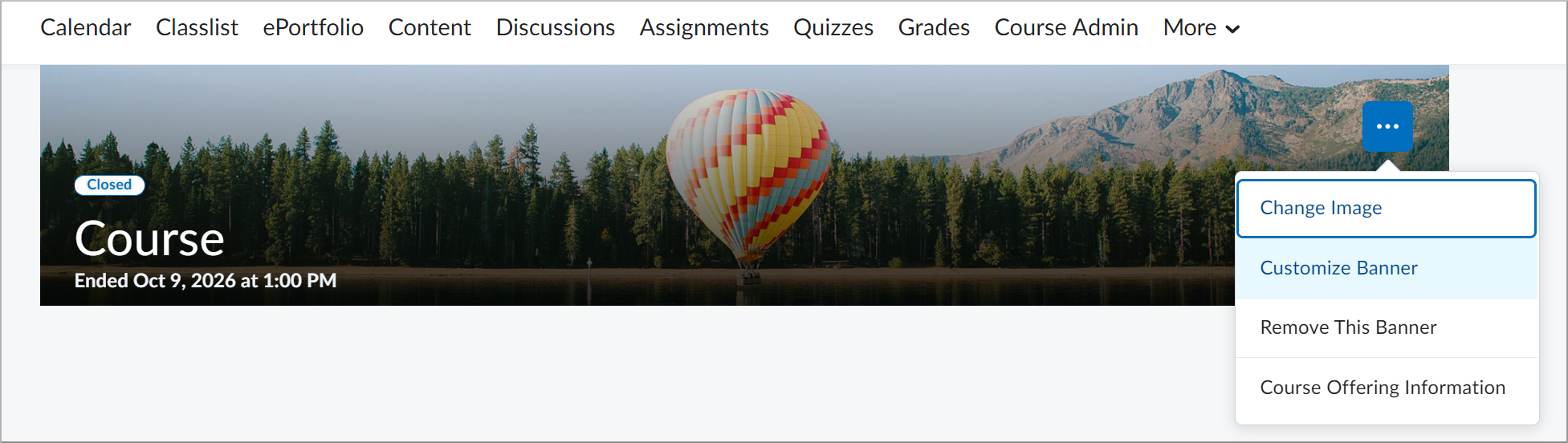
Figure: From the banner menu, select Customize Banner to open the dialog where you can set the course status and dates displayed as an overlay on the course banner.
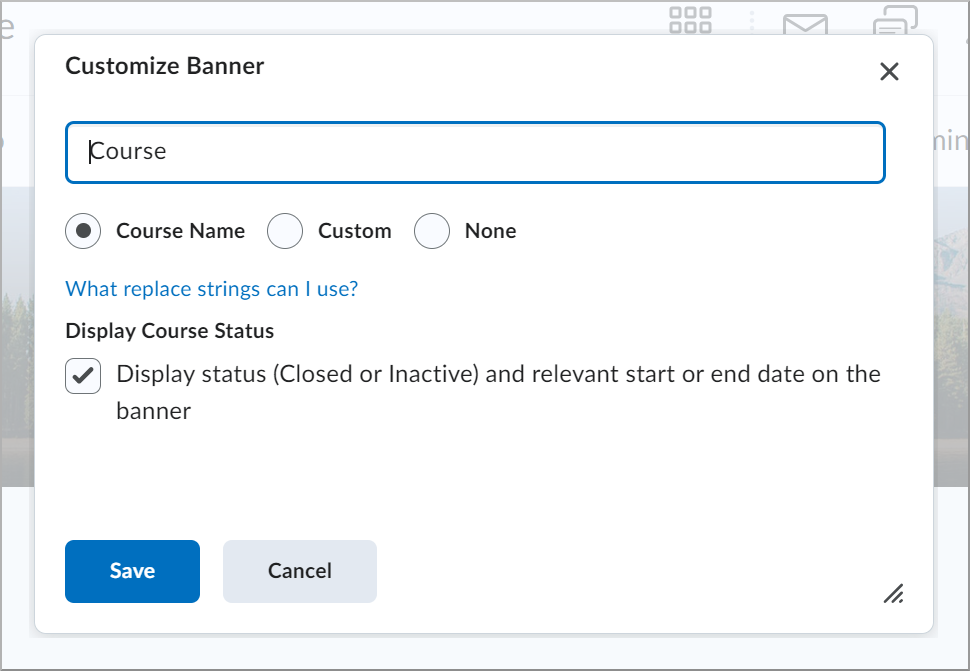
Figure: The Display Course Status option in the Customize Banner dialog.
As part of this update, the Manage Courses > Change Course Image and Banner Text permission is renamed to Manage Courses > Change Course Image and Customize Banner to align with the updated Customize Banner option.
Other Software Updates
This includes H5P, Copyleaks, MS Teams, Kaltura, and other supported SLATE tools.
