Types of MS Team Sites
At Sheridan, two types of Microsoft Teams are available: Teams and Class. They support both operational and academic activities and differ by the template applied to each.
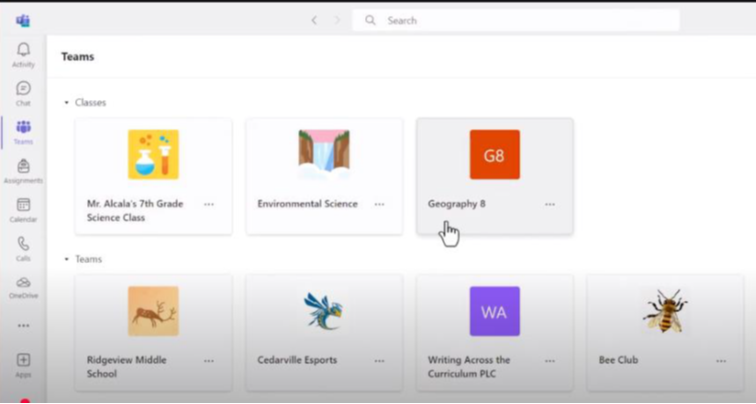
On your Microsoft Teams dashboard, you will notice two distinct tabs:
- Teams Tab: This section includes sites created for administrative purposes or project-based collaboration.
- Class Tab: The “Class” tab will appear on your dashboard. By selecting the dropdown menu within this tab, you will see a list of all automatically created Microsoft Teams sites that correspond to your teaching assignments for the current semester, as shown in the image below:
How will an MS Teams Site be generated?
- Microsoft Teams will automatically create a site for each delivery course section each semester.
- Instructors can activate the MS Teams site at their discretion. Note: Until activated, the site will remain hidden from students.
- Students and designated support roles (e.g., tutors) will be enrolled automatically, aligning with enrollment data in SLATE and PeopleSoft.
- If the Instructor activates the Course Team, students will be able to access it.
SLATE to MS Teams Sync
Automatic Enrollment Sync: Course Team membership is automatically updated based on SLATE enrollments. The following SLATE roles are synced to the corresponding Microsoft Teams channels:
Role Mapping from SLATE to Microsoft Teams:
| SLATE Roles | Microsoft Teams Roles |
| Instructor | Owner |
| Associate Deans | Owner |
| Students | Member |
| Tutors | Member |
| Educational support | Member |
| Secondary Instructor | Member |
Note: Instructors/Owners can enroll additional participants with either Owner or Member role as needed. The Owner role grants full, unrestricted access to all course Team content. Therefore, use caution when assigning this role. In contrast, the Member role provides limited access. Additionally, any manually added participant will remain in the Teams unless the Owner explicitly removes them.
